
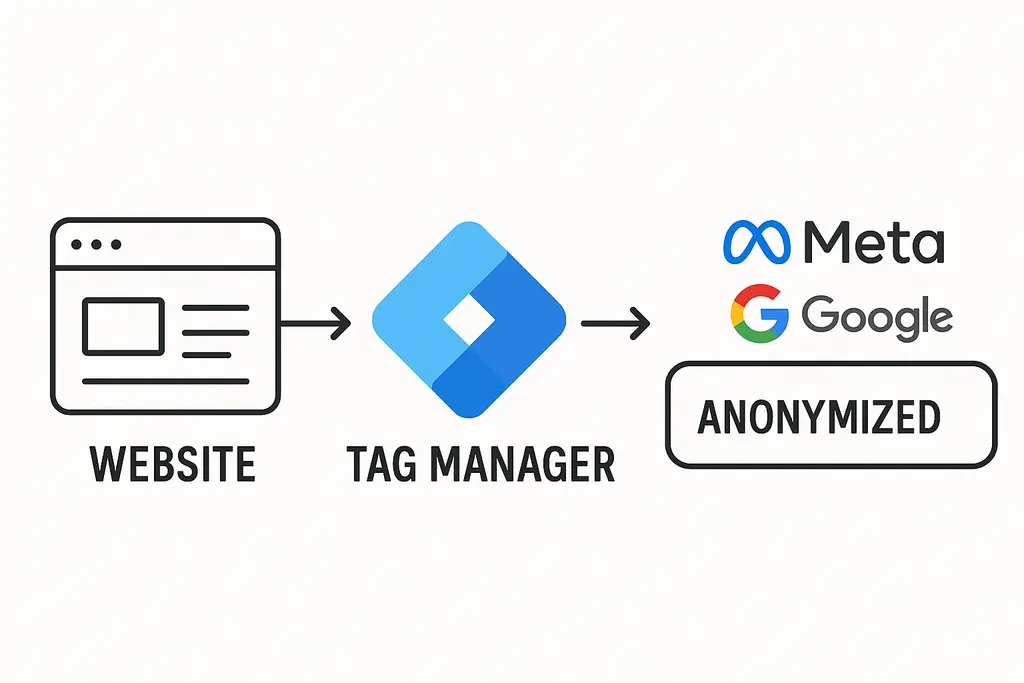
Customer Data Hashing with Google Tag Manager: Complete Setup Guide
Customer data is at the core of all businesses. It provides insight into what types of people are buying, their preferences, how they like to shop, and a host of other facts.
Customer data informs business decisions like how much of a product to stock, when to put products on sale or what product to build next. Without it, decision making is hampered and success is less likely.
In marketing, that breakdown usually isn’t creative or media — it’s measurement failing to persist identity across devices, browsers, and sessions.
To learn how a strong measurement strategy works, we’ll review how customer data is used online and why hashing data is so important.
TL;DR
Third-party cookies are dying, but customer data hashing keeps your ad attribution accurate.
This guide shows you how to set up SHA-256 customer data hashing in Google Tag Manager in 3 simple steps. The setup automatically captures and encrypts form data (email, phone, names) then passes it to Meta Ads, Google Ads, and other platforms for enhanced conversion tracking.
Result: better attribution accuracy, improved campaign performance, and privacy compliance. Takes about 30 minutes to implement.
Customer Data Hashing: Privacy-Safe Attribution
Customer data comes in many flavors. There are location identifiers like addresses, city, state, zip code. Personal identifiers like email address or phone number. Behavioral data like purchase history, website usage, product preferences, etc. The list goes on and on.
The name of the game is two-fold: capture and use.
Capturing customer data is most commonly done in lead/checkout forms. For more sophisticated marketers, customer data platforms (CDPs) enable the capture and storage of this data at any point during a website browsing session.
Using customer data is much more broad. It can fuel analysis and insights – incorporated into reports to marketing leaders. Provide the basis for strategy – planning what campaign to launch next and where. Or, fuel optimizations on a website or in advertising platforms.
Why Ad Platforms Are Moving Beyond Cookies
Ad platforms have historically used anonymous identifiers like browser cookies or click IDs to track users across the web, and attribute conversion credit to ad engagements.
These systems are still very much in use today. However, with many browsers deprecating 3rd party tracking and the evolution of user behavior (desktop to mobile) these historical tracking methods are becoming less effective.
Enter customer data: a new and powerful way to track someone online, and a core component of modern tracking infrastructure as cookies decay, and solutions like Google’s Enhanced Conversions and Meta Pixel rely on it because of its ability to track cross-domain.
We reviewed the power of customer data in ad attribution using Meta’s offline conversion tracking. One key aspect in that process is maintaining privacy compliance.
Staying Privacy Compliant with Hashed User Data
Privacy compliance means that the data does not expose personal information that could be used to identify who an individual is. Online identifiers like the aforementioned cookies/click IDs are anonymous by nature.
Customer data on the other hand is not. Certain forms of customer data like email addresses, names, phone numbers need to be anonymized to protect customer privacy. Others like city, state, zip code do not.
The method for this anonymization is an encryption process called hashing.
What Is Data Hashing and How SHA-256 Works
Hashing involves the use of a key to take data and turn it into a string of numbers and letters. This key can be used to decrypt the data. However, it’s a safe way to ensure anyone without the key cannot access it.
The most common form of hashing (and the one used by most ad platforms) is called SHA-256. Encrypting in SHA-256 and then sending to an ad platform ensures they can unencrypt it and process it.
This is the part that many advertisers miss. Taking hashed data and sending it back to an ad platform enables enhanced matching that can stitch together the user journey between devices.
Meta notes that providing hashed user data can in cases drive up to a 19% increase in attributed conversions.
We’ll review a simple method for hashing user information using Google Tag Manager. This means that anyone with basic knowledge of GTM can set up a hashing sequence to pass through customer data.
Setting Up Customer Data Hashing in Google Tag Manager
The hashing process can be broken down into three simple steps:
- Add the SHA-256 key
- Set up a tag that hashs data directly from your form
- Create data layer variables to capture the hashed data.
Step 1: Adding the SHA-256 Encryption Library
To begin, the SHA-256 library must be added to the website’s code. Cloudflare hosts a publicly available library that is easily accessible.
Create a custom HTML tag that imports this hash key:
- Tag: Custom HTML – SHA-256 Library
- Trigger: All Pages
- Tag Sequence: Fire before Hashing
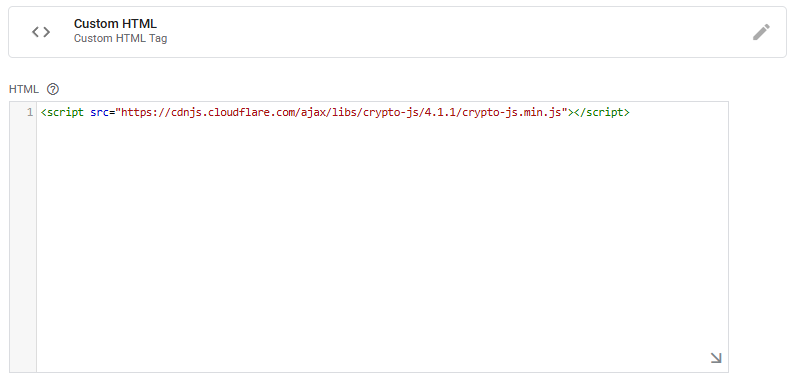
See Detailed Code
<script src="https://cdnjs.cloudflare.com/ajax/libs/crypto-js/4.1.1/crypto-js.min.js"></script>It’s important that this fires on all pages and before the next tag to ensure it’s accessible for hashing.
Step 2: Creating the User Data Hashing Tag
A custom HTML tag first pulls the value from elements in a form and hashes them using the key you just created.
It’s important to note: the element name needs to be updated to match the form field names.
How to Find Your Form Field Selectors:
- Right-click on any form field on your webpage
- Select “Inspect” or “Inspect Element”
- Look for the highlighted code that shows something like:
- <input type=”email” name=”email” id=”contact-email”>
- Use the name or id attribute to create your selector:
- If you see
name="email", use:'input[name="email"]' - If you see
id="contact-email", use:‘#contact-email’
- If you see
- Tag: Custom HTML – Hash + Push
- Trigger: Form Submit
- Tag Sequence: Fire before Conversion Tag
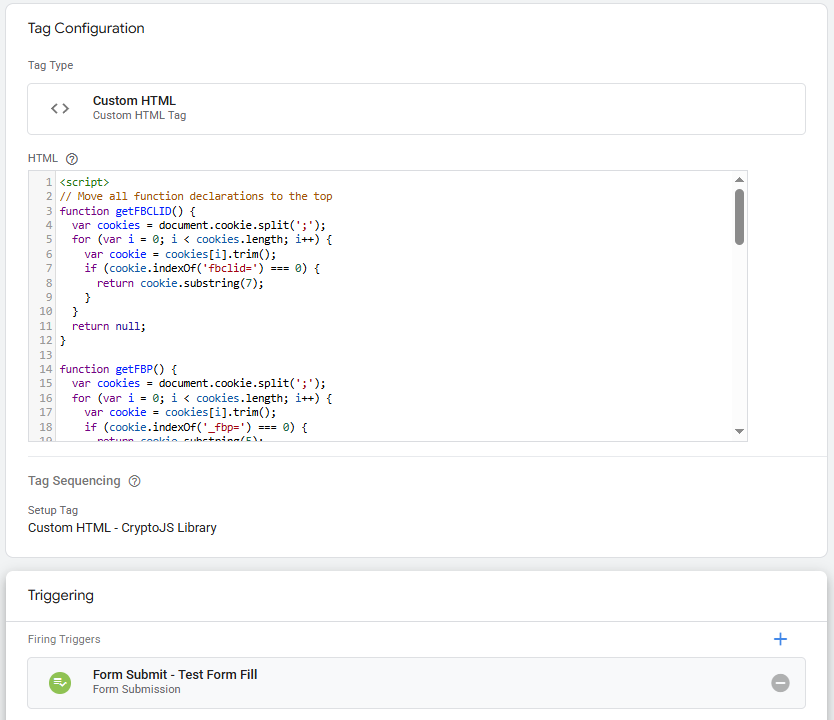
See Detailed Code
<script>
var CONFIG = {
  // Form field selectors - update these to match your form
  formFields: {
    email: 'input[name="input_1"]',        // Email field selector
    phone: 'input[name="input_2"]',        // Phone field selector
    firstName: 'input[name="input_7"]',    // First name field selector
    lastName: 'input[name="input_8"]'      // Last name field selector
  },

  // Data layer event name
  eventName: 'form_data_hashed',

  // Enable/disable specific data collection
  enableEmailHashing: true,
  enablePhoneHashing: true,
  enableNameHashing: true,

  // Debugging (set to false for production)
  debug: false
};

// UTILITY FUNCTIONS
function debugLog(message, data) {
  if (CONFIG.debug) {
    console.log('[Hash Template] ' + message, data || '');
  }
}

function normalizeEmail(email) {
  return email ? email.toLowerCase().trim() : '';
}

function normalizePhone(phone) {
  return phone ? phone.replace(/\D/g, '') : '';
}

function normalizeName(name) {
  return name ? name.toLowerCase().trim() : '';
}

function hashValue(value) {
  return value ? CryptoJS.SHA256(value).toString() : undefined;
}

function getFormFieldValue(selector) {
  var element = document.querySelector(selector);
  return element ? element.value : '';
}

// MAIN EXECUTION
function executeHashingTemplate() {
  debugLog('Starting user data hashing template');

  // Check if CryptoJS is available
  if (typeof CryptoJS === 'undefined') {
    console.error('[Hash Template] CryptoJS library not found. Please include CryptoJS before running this script.');
    return;
  }

  // Initialize data object
  var dataLayerPayload = {
    'event': CONFIG.eventName
  };

  // Capture and hash email
  if (CONFIG.enableEmailHashing) {
    var email = getFormFieldValue(CONFIG.formFields.email);
    if (email) {
      var normalizedEmail = normalizeEmail(email);
      dataLayerPayload.hashed_email = hashValue(normalizedEmail);
      debugLog('Email captured and hashed');
    }
  }

  // Capture and hash phone
  if (CONFIG.enablePhoneHashing) {
    var phone = getFormFieldValue(CONFIG.formFields.phone);
    if (phone) {
      var normalizedPhone = normalizePhone(phone);
      dataLayerPayload.hashed_phone = hashValue(normalizedPhone);
      debugLog('Phone captured and hashed');
    }
  }

  // Capture and hash first name
  if (CONFIG.enableNameHashing) {
    var firstName = getFormFieldValue(CONFIG.formFields.firstName);
    if (firstName) {
      var normalizedFirstName = normalizeName(firstName);
      dataLayerPayload.hashed_first_name = hashValue(normalizedFirstName);
      debugLog('First name captured and hashed');
    }

    // Capture and hash last name
    var lastName = getFormFieldValue(CONFIG.formFields.lastName);
    if (lastName) {
      var normalizedLastName = normalizeName(lastName);
      dataLayerPayload.hashed_last_name = hashValue(normalizedLastName);
      debugLog('Last name captured and hashed');
    }
  }

  // Send to data layer
  if (typeof dataLayer !== 'undefined') {
    dataLayer.push(dataLayerPayload);
    debugLog('Data sent to dataLayer', dataLayerPayload);
  } else {
    console.warn('[Hash Template] dataLayer not found. Please ensure GTM is properly installed.');
  }
}

// Execute the template
executeHashingTemplate();
</script>
Pay attention to the tag sequence. This tag must be fired before the ad conversion tag to ensure hashed data is sent with the conversion.
The hashed data is now pushed to the data layer, but will need data layer variables to insert it into your conversion tag.
Step 3: Setting Up Data Layer Variables for Hashed Data
Data layer variables simply take a piece of data and store it so that it can be used as triggers or added to tags.
Variables need to be created for each of the data points. As an example, we’ll create one for phone number.
Variable: dlv – hashed_phone
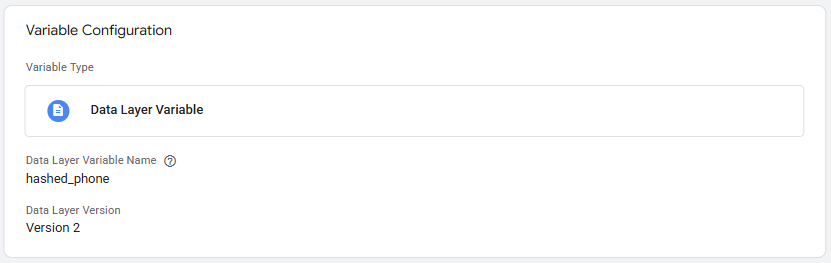
The naming convention for each variable is included in the hashing tag. For ease of reference, build out a DLV for each of the following:
- hashed_email
- hashed_first_name
- hashed_last_name
- hashed_phone
Once these are created, they can be added to each ad conversion tag.
Implementing Hashed Data in Your Ad Conversion Tags
This data can be leveraged in any ad conversion tag. For this example, we’ll look at a Meta Ads tag.
Meta Ads has a standard naming convention for uploading customer data that must be included as the property names in the conversion tag.
- Tag: Facebook Pixel – Form Submit
- Trigger: Form Fill
- Tag Sequence: Fire after Hash Tag
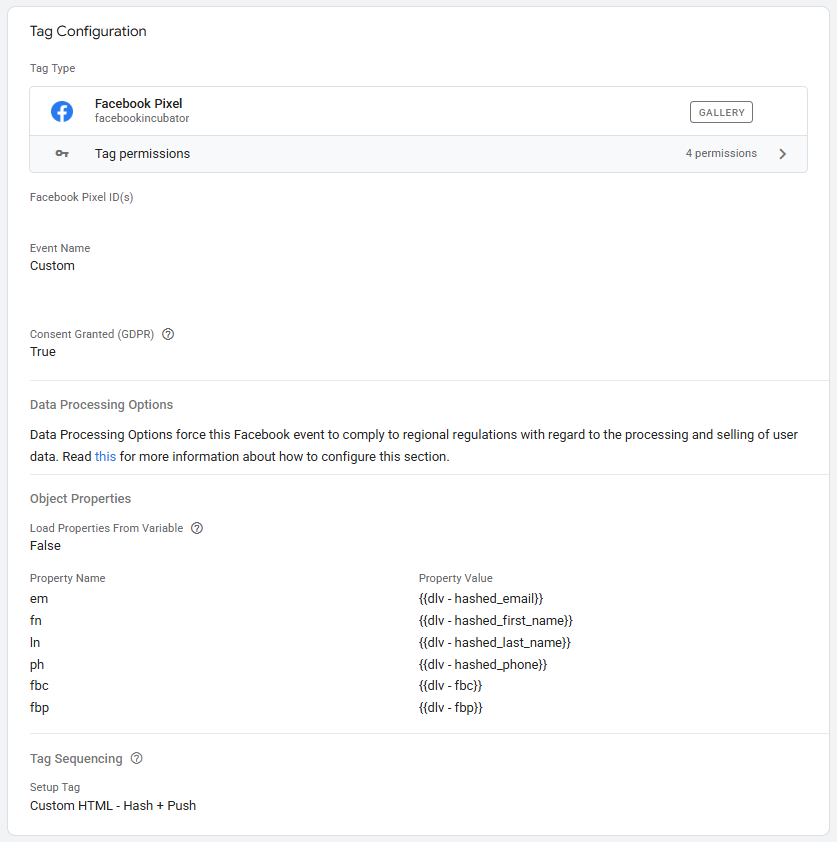
Remember: Always test using Google Tag Manager’s preview mode to ensure that hashed data is included when the tag fires.
For next level optimization, combine your enhanced data tracking with Facebook custom conversions for high-quality sessions to target users who genuinely engage with your content rather than those who simply click and bounce.
Maximizing Results from Privacy-Compliant Customer Data Tracking
You’ve successfully implemented SHA-256 data hashing that automatically captures and secures user information from your forms. This setup works seamlessly with Meta Ads, Google Ads, and any other platform requiring hashed customer data for enhanced matching.
Pro Tip: Integrating it through Meta’s Conversions API is a straightforward, no-code process when using GA4 to sGTM.
The hashed data flowing through your conversion tags will improve attribution accuracy and help platforms better connect user actions across devices and sessions. This should in turn lead to an increase in conversion volume and efficiency.
Monitor conversion tracking over the next 2-3 weeks and note any changes in conversion attribution by campaign or in the account overall. With privacy-compliant customer data hashing automated through Google Tag Manager, you’re one step further along in evolving your measurement and attribution strategy.