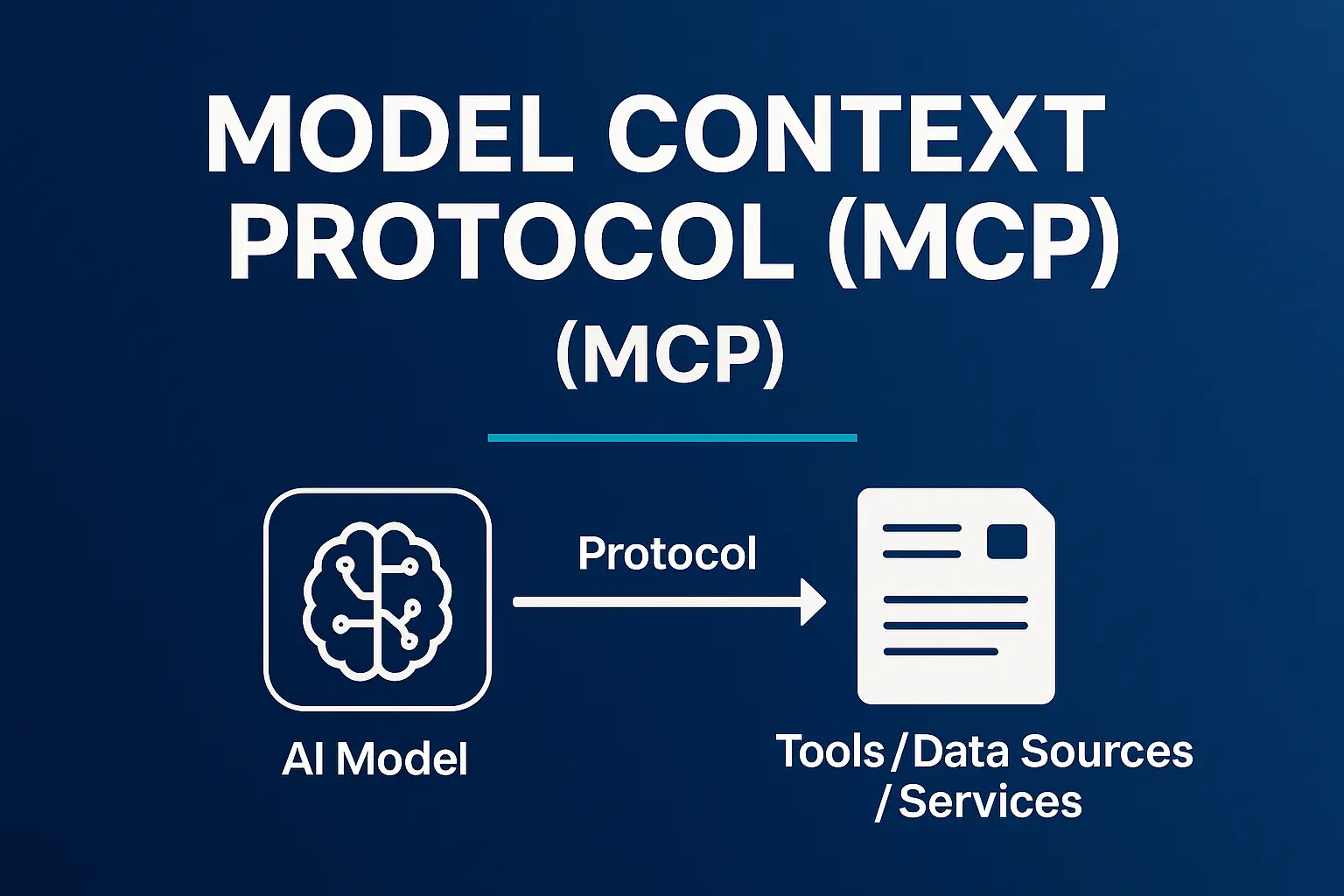
Model Context Protocol (MCP) Explained: A Marketer’s Guide
Generative AI is reshaping how we work day to day. Its core advantage is simple: the ability to access and distribute information faster than ever before.
The old search model — clicking through blue links to piece together answers — is being replaced by responses that synthesize hundreds of sources in seconds.
This shift won’t just disrupt Google’s dominance as a search engine. Other verticals are vulnerable too.
Enter Model Context Protocol (MCP): a standardized way to connect APIs with large language models and let them control entire systems through text prompts.
For digital marketers, this opens the door to entirely new workflows, from auditing Tag Manager containers, to creating tags, to building dashboards that combine multiple data sources.
In this article, we’ll cover a high-level overview of MCP, real use cases, and how you can start experimenting with it today.
TL;DR
MCP makes it possible for AI models to move beyond chat and into action. With just a server, some API credentials, and a simple MCP app, marketers can start connecting tools like Google Ads, GA4, and Tag Manager directly to models like Claude — turning data retrieval, audits, and reporting into conversational tasks.
What Is MCP (and Why It Matters)
At it’s core, MCP is an open source protocol that let’s AI models securely and consistently connect to external tools, data, and applications. In other words, it’s a standardized way to build integrations between existing platforms and AI models.
So instead of building custom integrations, MCP defines common schemas for how models request data, run actions, or receive context.
How MCP Connects Models and Tools
Without getting into the details of the protocol, MCP works quite simply. The three pieces involved in the process are Clients (AI models), Servers (Tools, Data Sources), and the Protocol itself (the code that defines data flow).
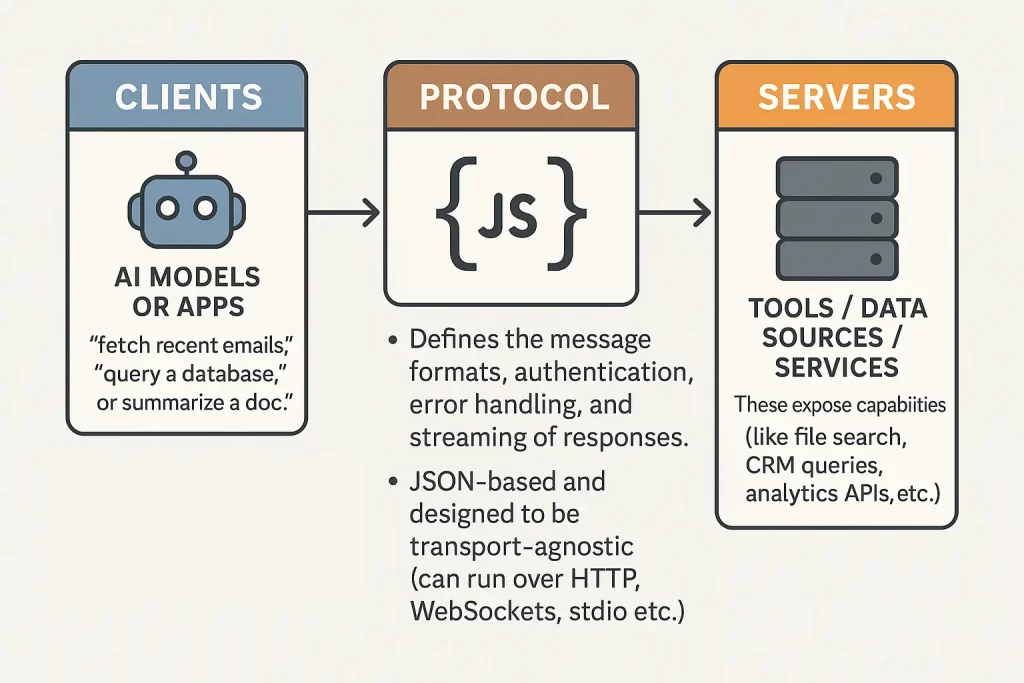
Both sides are connected to APIs so that data can be pulled and injected. The MCP simply serves as the translator.
The Role of APIs in MCP
It’s important to consider that AI models like Claude or OpenAI can’t integrate directly to other platforms. To feed data into these models, an API key is required.
AI Model APIs (Claude, OpenAI, etc.)
Custom connectors are available through many models at this point, but the two most popular are ChatGPT and Claude. I’d recommend ChatGPT for its seemless integration.
Reminder: Custom connectors are only available to Plus and Pro subscribers on ChatGPT and Claude respectively.
However, beyond that, leveraging a MCP server as a custom connector is free. No API costs from OpenAI or Anthropic.
Tool APIs: Connecting Google and Beyond
The MCP is only as useful as the tool it connects to, and fortunately a lot of tools that have API access tokens are free or low cost.
Examples of these tools are any Google products (GTM, GA4, Google Ads) or Meta Ads. Generating API keys from both of these platforms is effectively free (so long as you don’t exceed the free tier of Google Cloud Run).
This effectively connects Google Ads data to Claude and streamlines data pulling and insight generation.
Let’s look at some other use cases of MCP when hooked up to Google products
Practical MCP Use Cases for Marketers
Virtually any platform with API access can connect to AI models using MCP, and carry significant benefits. No more CSV exports or screenshots. Let’s take a look at a few use cases.
Tracking Conversion Time Lag in Meta Ads
Meta Ads doesn’t have a conversion lag metric built in like Google Ads. To understand how long it takes a user to convert after clicking, MCP can feed daily conversion data to an AI model.
Your AI model can track how many conversions are recorded each day and map a ‘lag tracker’ showing how conversions grow over the next 7 days.
Example Prompt: Analyze conversion lag for purchase events in campaign act_xxxxxxx to understand reporting delays.
Check out my guide on Meta Ads MCP server setup to get started.
Auditing & Automating GTM with MCP
Tag Manager containers are filled with potential given their text-based format and clear hierarchical structure. For a quick refresher on Google Tag Manager, AnalyticsMania has a good intro guide.
MCP can be used to conduct a quick audit of your Tag Manager container to better track active tags, create triggers, and even publish new tags.
Example Prompt: List all tags firing on page load and highlight ones with missing triggers
Benefits of this method:
- Reduces human error in tag setup
- Saves time auditing
Build your own with my MCP server for GTM setup guide
Unlocking GA4 Insights with MCP
Google Analytics has rich insights that many marketers often overlook. Connecting via MCP allows for quick insights into page, traffic, or even specific campaign level engagement.
The trick is robust UTM parameters that persist across browsing sessions to give campaign, creative, or keyword level insights that aren’t tracked by default.
Example Prompt: Show me the top 5 pages by engaged sessions that also had source/medium = facebook / paid last week.
Benefits of this method:
- Saves significant time in analysis
- Makes Google Analytics more accessible regardless of technical knowledge
Faster Optimization & Reporting in Google Ads
In a similar vein, Google Ads relies on constant budget and campaign performance management and optimization.
For clients that require weekly performance reports, insights can be pulled quickly through prompts that identify trends.
Example Prompt: What change in conversion and cost per conversion did I see last week.
There is also opportunity for better optimization based on campaign spending. This could happen at the campaign, ad group, or keyword level.
Example Prompt: What keywords wasted the most budget yesterday.
Benefits of this method:
- Speed up reporting and insights
- Streamline weekly pacing/optimizations
Note: MCP could run more complex ad forecasting without the need for extensive spreadsheets.
So how do you get started with MCP? Let’s take a look at the requirements to set up this workflow.
How to Get Started with MCP
Before you begin, it helps to have some knowledge of JSON and schema structure (or have a developer to help) as the process can get very technical.
To get started, have access or be able to create the following:
- Server (recommend Google Cloud Run)
- Account IDs (for tools to connect)
- Anthropic API key (or comparable model)
Step 1: Set Up a Server
A server like Cloud Run acts as the intermediary between the AI model and your chosen tool (i.e. Google Ads). We’ve discussed how to set up a Google Cloud server in past articles.
Why You Need It: It translates MCP requests into API calls and sends the results back in standard format.
The server uses a small app that speaks MCP to communicate between your tool and AI model. However, before that can happen, API access to the tool must be set up in your server.
Step 2: Connect Tool Credentials
Credential like account IDs, API keys, and authentication credentials act as the access points for your server to access the tool’s data.
Why you need it: Without valid creds or account details, your server can’t access or won’t know which account to pull data from.
For Google tools, you’ll need to generate OAuth credentials or API keys in Google Cloud Console.
The necessary steps:
- A new project
- Enabling the API
- Downloading a JSON key file or client credentials
Step 3: Build an MCP App (Developer Help Recommended)
An MCP app is required to pass data back and forth between your tool and AI model. This is the ‘translator’ we discussed earlier.
The app is made up of three key components.
1. The Protocol Layer
Purpose: This contains the MCP naming structure – in other words, it teaches your app to speak the AI model’s language.
What it includes:
- Handles incoming requests
- Definitions for message format, authentication, and error handling
- Logic to send back responses in JSON
Without this layer, the AI model won’t understand anything you’re sending it.
2. Tool Definitions
Purpose: These add specific actions from your tool and set the basis for what your app can actually do.
What it includes:
- A list of tools (i.e. get_metrics, audit_container)
- JSON Schemas for input/output (standard field names, possible errors, etc.)
- Documentation so the model knows how to use them
This is how the AI model knows what to do with the data provided to it.
3. Connectors to External APIs
Purpose: To actually connect your app to platforms like Google Ads, GA4, GTM, etc.
What it includes:
- Code that autheticates with Google APIs
- Functions that take MCP tool inputs and turn them into API queries.
- Transforms API responses into clean JSON that fits your schema.
Without this, your app wouldn’t be able to actually send an API call that returns real data.
Step 4: Add Your AI Model API Key
As mentioned earlier, AI models require a key to send data through their API. For Claude, this is Anthropic API.
Why you need it: Even with a working MCP, the model can’t connect to your server unless it authenticates through the API gateway.
For Claude, you can create an API key at the link above, but note that it is billed separately from the model.
And that’s it – this process is the same regardless of which tool you’re connecting with the only step.
What’s Next with MCP
MCP is still in its early days, but the implications are massive. By standardizing how AI models talk to tools like Google Ads, GA4, and Tag Manager, marketers can move from manual reporting and auditing into an era of conversational analytics and automated workflows.
The steps I outlined here give you the high-level picture of what it takes to get started: a server, credentials, an MCP app, and an AI model API key. Give it a shot for yourself and learn how to build an MCP server to pass data from Meta Ads or build your first Google Ads MCP server. Your reporting and optimizations will thank you later.
Remember: MCP turns AI models from passive chatbots into active marketing assistants that can pull real data, perform real actions, and unlock new efficiencies. This is bleeding edge technology, but will soon become industry standard. Don’t wait – get started today.