How to Build and Deploy a Google Ads MCP Server with Cloud Run
Google Ads remains to this day the most effective marketing channel at capturing user intent thanks to its dominance over global search market share. While AI threatens this business model, we aren’t expecting traditional search to go away any time soon.
However, AI models have enabled a new opportunity for marketers as an interface to query and retrieve data from other platforms. Model Context Protocol (MCP) is a new standardized language that does just that.
Instead of digging through Google Ads for insights and recommendations, a MCP app can enable you to query ChatGPT directly for this data. We’ve reviewed how to set up a MCP server for Meta Ads previously – let’s see what it takes to build one for Google Ads.
TL;DR
MCP (Model Context Protocol) lets you connect ChatGPT directly to Google Ads so you can pull reports, visualize data, and automate campaign analysis through natural language prompts.
This guide walks you through building your own Google Ads MCP server using Google Cloud Run, OAuth, and the Ads API. Once live, you can skip dashboards entirely and just ask ChatGPT things like:
- “Show me top search terms by spend last month.”
- “Pull pacing for this month and flag campaigns over budget.”
No spreadsheets. No manual exports. Just instant insights.
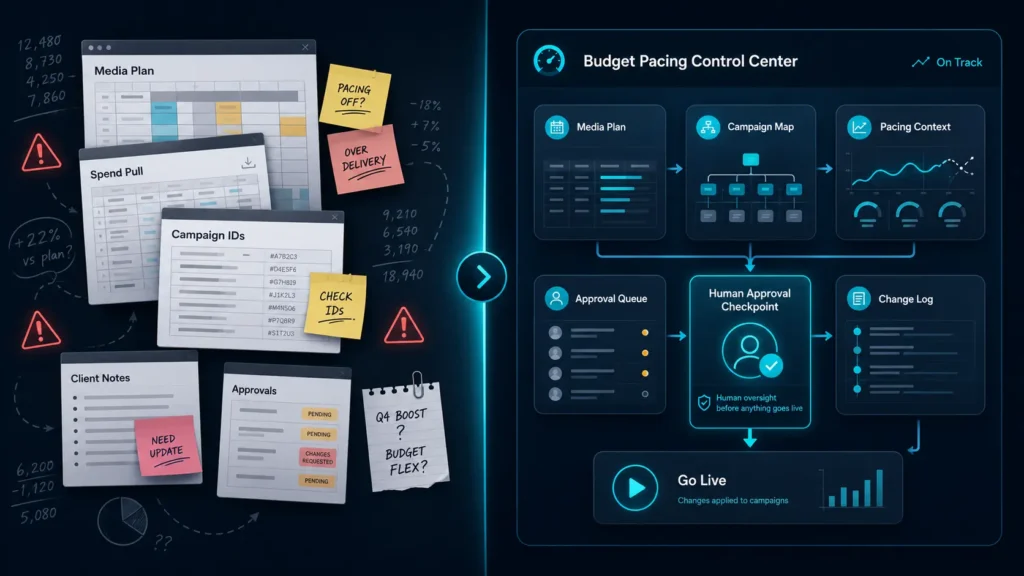
Want to see what this looks like as a finished workflow? I also built a Google Ads MCP service page showing how this type of system can support reporting, search term analysis, budget pacing, conversion QA, and recurring account management workflows inside ChatGPT.Why Use MCP for Google Ads?
Not only is an MCP server a much easier and streamlined way to interface with tools, it offers unique benefits through natural language processing and automation.
Save Time Pulling Data
Data pulls that would take hours can be done in minutes through prompts. Imagine you’re pulling insights for a report and need to find the budget split between brand and non-brand search, or which search terms drove the most clicks.
Example Prompt: How much spend was allocated on branded search vs non-branded search?
Example Prompt: What search terms drove the most clicks and are there opportunities to expand my keyword list?
Instant Visualization
Taking data and building visuals for better analysis can eat up chunks of time, especially with formatting. AI models fix this by creating visuals completely from natural language prompts.
Better yet, you don’t have to download anything – the data from your previous call can be transformed with a simple prompt.
Example Prompt: Create a chart of weekly spend by top 5 highest spending campaign
Example Prompt: Show a cost and conversion weekly trend chart over the last 3 months.
Automate Repetitive Tasks
Pulling weekly pacing or search query report usually involves setting up a spreadsheet with manual configuration. An MCP server with built-in tool to monitor pacing or search terms and call out outliers simplifies this process.
Example Prompt: Pull pacing for this month and callout campaigns under or over pacing by 5% or more.
Example Prompt: Pull search terms with over 100 impressions volume but no clicks or with a click-through rate lower than 2%
These prompts barely scratch the surface of what’s possible. Building in tools specific to your needs is the best way to ensure the tool improves overall workflow efficiency.
If you want the productized version rather than building it from scratch, see my Google Ads MCP service page. It shows how I package this into a custom Google Ads management assistant for reporting, pacing, QA, and recurring optimization workflows.Step-by-Step: Setting Up a Google Ads MCP Server
The setup process includes three general steps:
Let’s take a look at each of these steps and the necessary compontents.
API Key Access and Setup
API keys are required to connect the platforms to each other. Google Cloud will store the keys to enable connectivity between your apps and server.
Start with the Google Ads API key request as it may take up to 48 hours for Google to respond to your request.
Requesting a Google Ads API key
Google Ads API keys are available to anyone with a Google Ads manager account (if you don’t have one, you can create one even if it’s just for one ad account).
Simply login and navigate to the Admin tab → API Center. Here you can apply for access to Google Ads API.
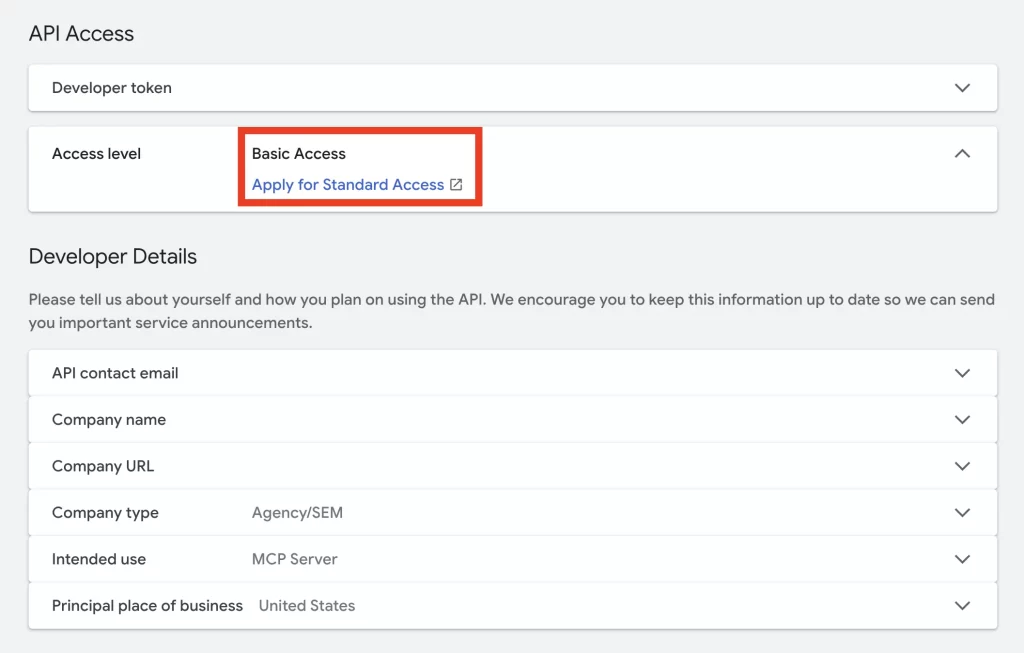
Google requires a form submission with project details to gain an API key. Generally, all they want to know is what you’re using the API for.
Submit it and start setting up your Cloud Run service with the necessary access.
Once your request is approved, the Developer Token will be available to add to your Cloud Run instance.
Google Ads API Setup (in Google Cloud)
Create A New Project in Google Cloud
- Navigate to APIs & Services → Enable → Google Ads API
Enable it and the API is set up. Now configure OAuth settings.
- Navigate to OAuth consent screen → configure.
This will allow you to create a client ID and secret needed to link Ads API to your server.
- Navigate to Clients → Application Type: Web Client → Create
Save the Client ID and Client Secret for the next step. These can be added to Google Cloud’s Secret manager later.
Configure OAuth and Secrets
Open the client you just created and add test users (your Google account that will authorize the request token).
Authorized redirect URL: https://developers.google.com/oauthplayground
Open the OAuth Playground to complete the next step.
Click the gear icon → Use your own OAuth credentials → paste your Client ID and Client Secret.
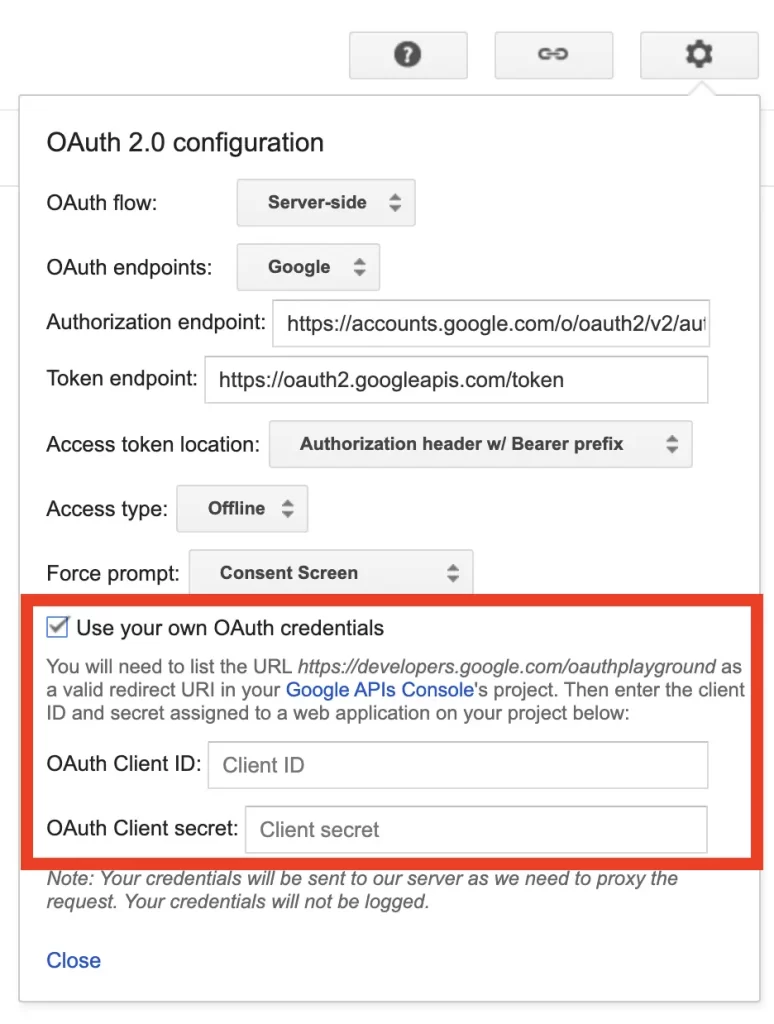
Authorize APIs → scroll and find: https://www.googleapis.com/auth/adwords → Authorize.
At this point, it will make you log in to your google account – use the google account with access to your MCC.
Exchange authorization code → you’ll get access token + refresh token.
- Save the refresh token in a secure place.
Adding Credentials to Secret Manager
Instead of coding secret keys into a public-facing app, use a secret manager to inject them into the app safely.
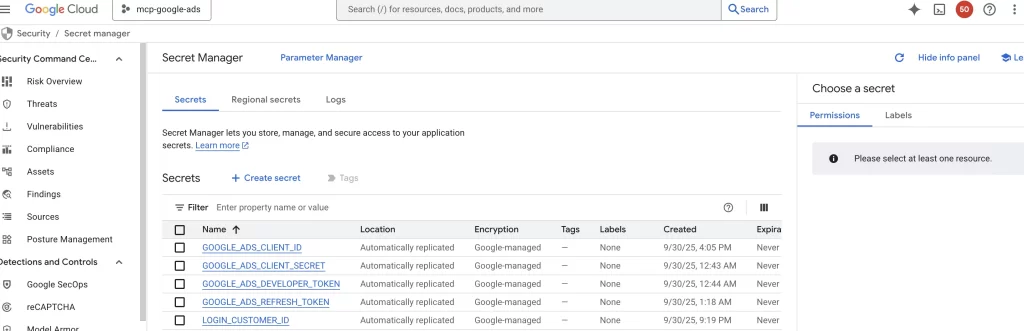
Navigate to Security → Secret Manager → Create
You’ll add secrets for the following values:
- Google Ads Client ID (created in Step 2)
- Google Ads Client Secret (created in Step 2)
- Google Ads Developer Token (created in Step 1)
- Refresh Token (created in Step 4)
- Google Ads Client ID (use your MCC Account ID)
These variables will be inserted into your server configuration so make sure they match the naming convention used.
Make sure these match the naming convention used in your app. Examples below.
- GOOGLE_ADS_DEVELOPER_TOKEN (you should have it now from your manager account)
- GOOGLE_ADS_CLIENT_ID
- GOOGLE_ADS_CLIENT_SECRET
- GOOGLE_ADS_REFRESH_TOKEN
- (optional) GOOGLE_ADS_LOGIN_CUSTOMER_ID
After setup, your secret manager should look something like this:
Cloud Run Service Configuration
Similar to our Google Tag Manager MCP Server setup, the Cloud Run service will connect to a GitHub repository to host the MCP server.
Building GitHub Repository
Login to GitHub and build a new repository. There are three main files required for this buildout:
- requirements.txt
- Dockerfile
- app.py
The primary tools in this app are
list_resources(find accessible accounts)fetch_campaign_summary(with min_spend filter)fetch_metricsfetch_search_terms(top spend)fetch_change_historyfetch_budget_pacing
These cover basic functionality but can be further customized to include custom conversions, goals, monthly budgets, and more.
Launching The Cloud Run Service
We’ve reviewed how to launch a Cloud Run service before, but to quickly review. Start by creating a new service.
- Open Cloud Run → Create service
- Service name: mcp-google-ads (or something similar)
- Region: closest to where your users are located
Connect the GitHub repository you just created – if this is the first time you’re connecting GitHub to Google Cloud, you will have to authenticate it using your login credentials.
- Connect GitHub to build your container image URL
- Click Deploy from source
- Select your GitHub repo/branch, and let it build (Cloud Build will run once).
- Click Deploy from source
Minimal customization of the service settings is optional, but not required.
- Container port:
8080 - CPU/Memory: e.g., 1 vCPU / 512MiB (defaults are fine)
- Autoscaling: min instances
0, max as you like - Authentication: None
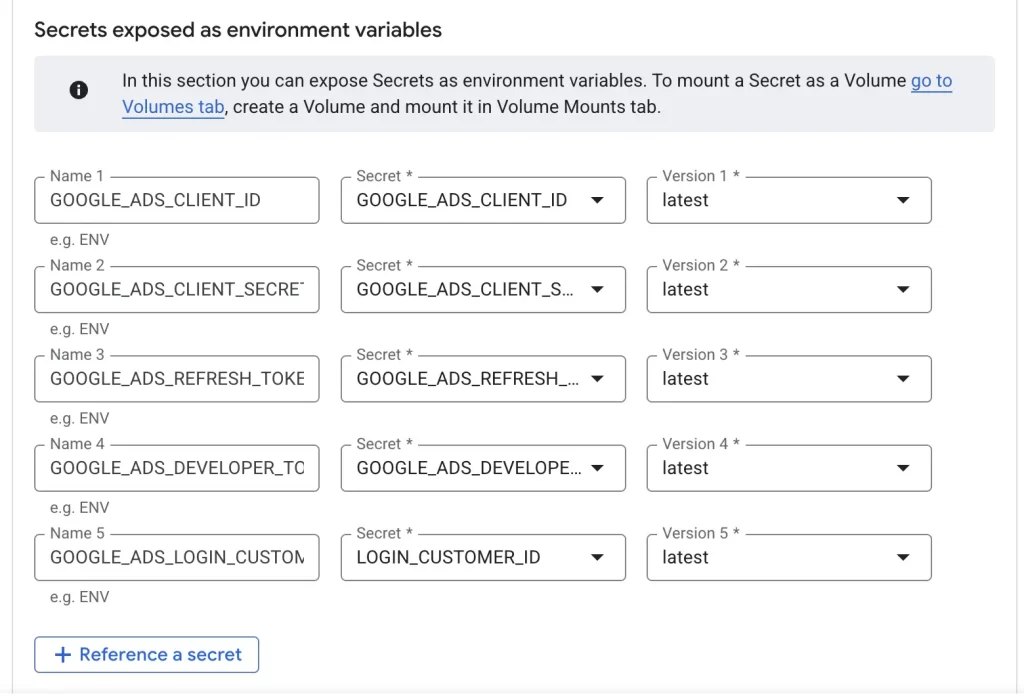
The Secrets you added to your secret manager are required. Navigate to variables & secrets and add:
- Secrets: add bindings for
GOOGLE_ADS_DEVELOPER_TOKENGOOGLE_ADS_CLIENT_IDGOOGLE_ADS_CLIENT_SECRETGOOGLE_ADS_REFRESH_TOKEN- (optional)
GOOGLE_ADS_LOGIN_CUSTOMER_ID
Note: (All as Environment variables from Secret Manager; names must match exactly.)
Your variable setup will look like this:
Once done, click Deploy and wait for the service to run (green check mark means it’s finished).
Using Your Google Ads MCP in ChatGPT
In ChatGPT, navigate to settings > connectors > create (if this is your first time, enable developer mode in advanced settings)
Your connector needs the following settings:
- App name: something like Google Ads MCP
- Server URL: your Cloud Run URL (e.g.,
https://mcp-google-ads-…run.app) - No auth needed
Click create and you’re done. All that’s left is to enable the connector using developer mode in your chat settings.
Now you can use natural language:
- “Show me the top search terms by spend for Globex West last month.”
- “Give me a campaign summary for Acme for the last 7 days with minimum $5 spend.”
- “Fetch weekly spend trend for the top 5 campaigns over the last 3 months” (then chart it with a follow-up prompt).
Troubleshooting
Occasionally the tool will return an error. Here are some of the most common reasons and their solutions.
Permission Denied
Often means ChatGPT isn’t able to identify the account number. Make sure you use your MCC in GOOGLE_ADS_LOGIN_CUSTOMER_ID or pass the MCC account ID in each call.
Empty results
Check the date range used for filtering and ensure the account actually has spend; tools default to filtering out $0 spend in many cases.
Moderation Message in ChatGPT
Sometimes the first call after connecting can get flagged; Run ping or list_resources tools to “warm” the session and subsequent calls should work fine.
MCP: The Future Of Ads Reporting
The rise of MCP signals a shift in how marketers access and interact with their data. Rather than logging into multiple dashboards or exporting reports manually, MCP creates a bridge between large ad platforms and natural language interfaces like ChatGPT. For Google Ads in particular, this opens up new ways to explore campaign data, generate insights, and even automate workflows – all from a single conversational interface.
Setting up your own MCP server might take an hour or two, but the payoff is huge: faster analysis, cleaner reporting, and the ability to query your ad data as easily as asking a question. As AI continues to evolve, tools like MCP will redefine how marketers work. Turn data retrieval into a conversation rather than a chore.
Want this built around your Google Ads account structure, campaign map, pacing workflow, conversion actions, and reporting needs? View the Google Ads MCP service page to see how I productize this as a custom AI-powered Google Ads management system.Appendix – MCP Resources
Explainers
- Model Context Protocol Explained for Marketers — A plain-English overview of what MCP is, how it works, and why it’s reshaping how marketers access data through AI interfaces.
Implementation Guides
- Building an MCP Server for Google Tag Manager — Learn how to connect GTM to ChatGPT for querying tag data, version history, and container configurations.
- Building an MCP Server for Meta Ads – Step-by-step setup to pull campaign, ad set, and creative performance directly from Meta Ads through natural language.
Resources for Setup
- Google Ads MCP GitHub Repository – get the app code I used to create this MCP server