Why Standard Google Conversion Tracking Breaks Down in 2025
Google Ads API Integration for Custom Conversion Tracking
TL;DR
Google’s newer campaign types (Performance Max and Demand Gen) blur the line between demand creation and demand capture, often over-crediting existing customers and late-stage interactions.
This is ultimately a measurement problem, not a campaign problem. The fix is upgrading your tracking infrastructure so your conversion signals reflect what you actually want to optimize.
Using the Google Ads API to import offline conversions — enriched with click IDs and customer-level data — gives advertisers control over which conversions Google optimizes toward.
This guide shows how to set up Google Ads API conversion tracking to prioritize new customers, first-click sources, and high-quality conversions, restoring transparency and control in algorithm-driven accounts.
In digital advertising, conversion tracking is the bridge between online activity and real business outcomes. Nowhere is this more important than on Google – where most buying journeys ultimately end.
Search behavior has always been a strong indicator of intent. When someone actively looks for a solution, conversions from Google Ads often act as an early signal for revenue growth. But newer campaigns types like Performance Max and Demand Gen have complicated this relationship by blending search with display and video inventory – obscuring where demand is actually created
The result is an optimization system that increasingly favors existing customers, branded traffic, and late-stage interactions. What looks like improved efficiency often comes at the expense of true incrementality.
To fix this, advertisers can pass through leads or sales with a Google Click ID or limit conversions counted from existing customers, but these fixes require offline tracking.
The Google Ads API enables this pass-through from systems like CRMs and CDPs, giving advertisers direct control over which conversions Google learns from and optimizes toward. This article walks through how to implement conversion tracking using the Google Ads API and how to use it to reclaim control over Google’s optimization engine.
Conversion Tracking Use Cases Enabled by the Google Ads API
We’ve reviewed how to set up GCLID tracking and offline conversion importing through Zapier – a much less technical setup. However, for advertisers with existing sGTM setup, Google API offers a cost-effective solution with the same benefits.
Track New Customers Only
Brands with high awareness in market and a loyal customer base will market to existing customers. It’s unavoidable.
Retention is important, yes. But, this is not the way to grow a business. Growth relies on new customer acquisition.
Use a tag in your CRM to identify first time purchase vs repeat purchase. Sending this signal to Google incentivizes it to find more new customers – growing your business.
Track First-Click Campaigns
Retargeting campaigns (Performance Max in Google) will take credit for conversions that it had no hand in driving. Crediting these campaigns for those conversions incentivizes the wrong behavior.
Google does not allow conversions to track without view-based credit, but offline conversions can workaround this.
By only allowing conversions to track when GCLID is present, Google is only able to credit based on a click. Advanced workflows capture GCLID in a user profile in a CDP to pass through the first-click source – optimizing where the conversion actually came from.
Track Offline Events
Don’t just rely on online activities to optimize campaigns. As long as a GCLID is tied to your customer profile (through email/phone number), offline sales can be imported.
The key to this is tracking some event online that ties a user to an initial click ID. A lead event like guide, sign up, or quote are great ways to obtain customer information online for offline attribution.
Bonus points if you use a CDP that creates unified customer profiles and connects to offline systems like a Point of Sale system or Database.
What You Need Before Setting Up Google Ads API Conversions
Before beginning, there are a few prerequisites to complete before setting up custom conversions.
- Google Ads API Key
- Server Environment (Google Cloud recommended)
- Click ID tracking (GCLID/GBRAID/WBRAIB)
Google Ads API Access
We’ve reviewed how to gain access to Google API for MCP server setup, but a quick refresher on the steps:
- API access requires a Google Ads Manager account
- Once in a manager account, navigate to the Admin tab → API Center
- Apply for ‘Standard’ access for personal use
- Once approved, an API key will be generated
Approval can take up to 48 hours, so while it’s being reviewed, set up the rest of the dependencies.
Server Environment
We’ve also looked at how to set up a Google Cloud project – refer to this guide for detailed steps. Here’s a quick refresher.
- Create a new project in Google Cloud
- Enable Google Ads API (APIs & Services → Library)
- Configure OAuth Consent Screen
- Create OAuth Credentials
- Generate Refresh Token (Use Google’s OAuth Playground)
- Get Your Developer Token
Save your credentials somewhere safe (preferably in Secret Manager) for ease of reference later. You’ll need:
- Developer token
- Client ID
- Client secret
- Refresh token
- Your Google Ads Customer ID (CID)
The final step is capturing the click ID in your database. These are the keys to matching conversions back to Google Ads clicks.
Click ID Tracking (GCLID, GBRAID, WBRAID)
GCLID is the most important ID for matching Search conversions to ad clicks.
GBRAID and WBRAID were created in response to iOS blocking GCLID. They are focused iOS and Youtube/PMax attribution.
All three appear in the URL after ad click making storage and capture straightforward.
1. Client-side Storage
Use a lightweight script on page to capture IDs and store them in localStorage. Fire this script on all pages.
Detailed Script
const params = new URLSearchParams(window.location.search);
[“gclid”, “gbraid”, “wbraid”].forEach(key => {
const value = params.get(key);
if (value) localStorage.setItem(key, value);
});
This sets a first-party cookie in the client’s browser that can be called back in form submissions.
2. Server-side Storage
This process requires a sGTM container setup to create a first-party cookie in the user’s browser. Similar to server-side tracking for Meta Ads, using sGTM to store click IDs is more durable against ITP.
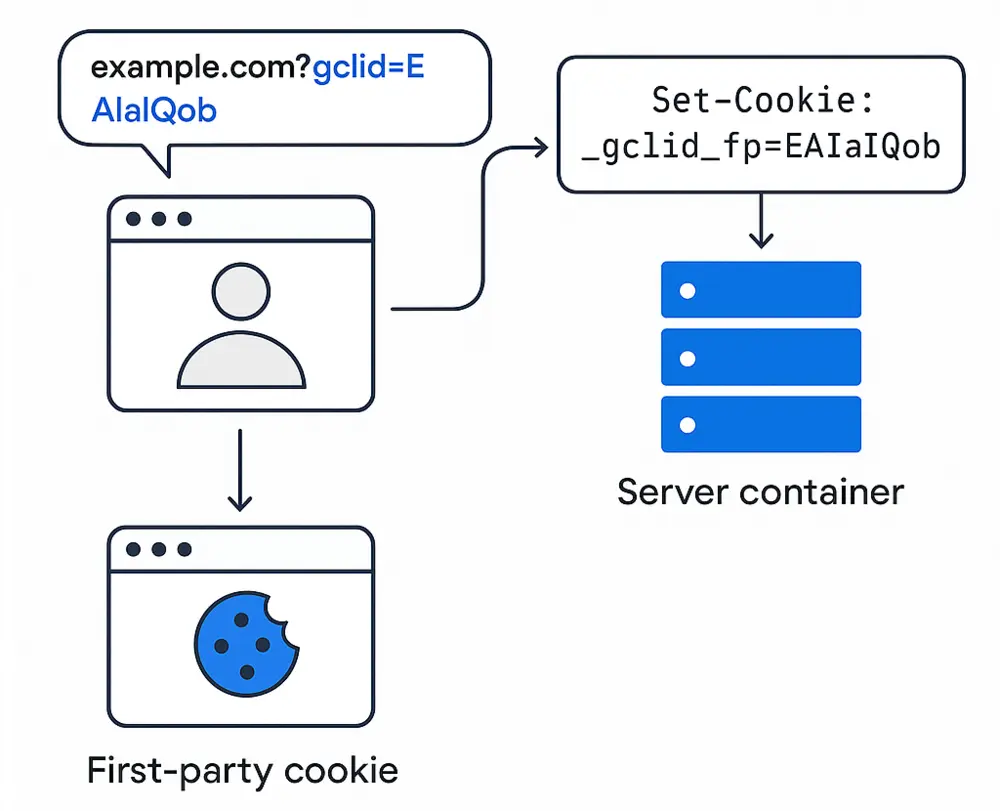
Add a variable to web GA4 tags to forward GCLID to your sGTM container. sGTM creates a HTTP header with the ID and instructs the browser to create a first-party cookie with it.
Because the server sets the first-party cookie, not JavaScript, it’s more durable and accepted by Safari and privacy systems.
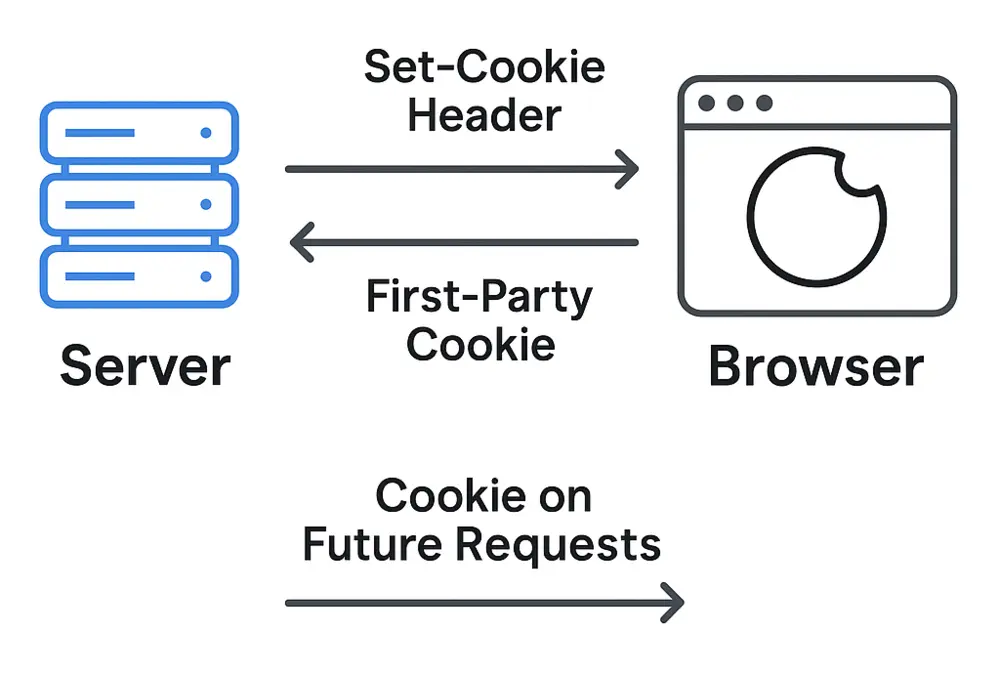
Note: ID’s must be captured with user data at the point of form submission or purchase.
If you already run sGTM, always prefer server-side storage. Client-side is acceptable only when sGTM isn’t available.
Setting Up Offline Conversions with the Google Ads API
For this custom conversion set up, we’ll look at how to connect Microsoft Azure with Google Ads. The set up process takes roughly two hours and requires some experience with setting up API payloads.
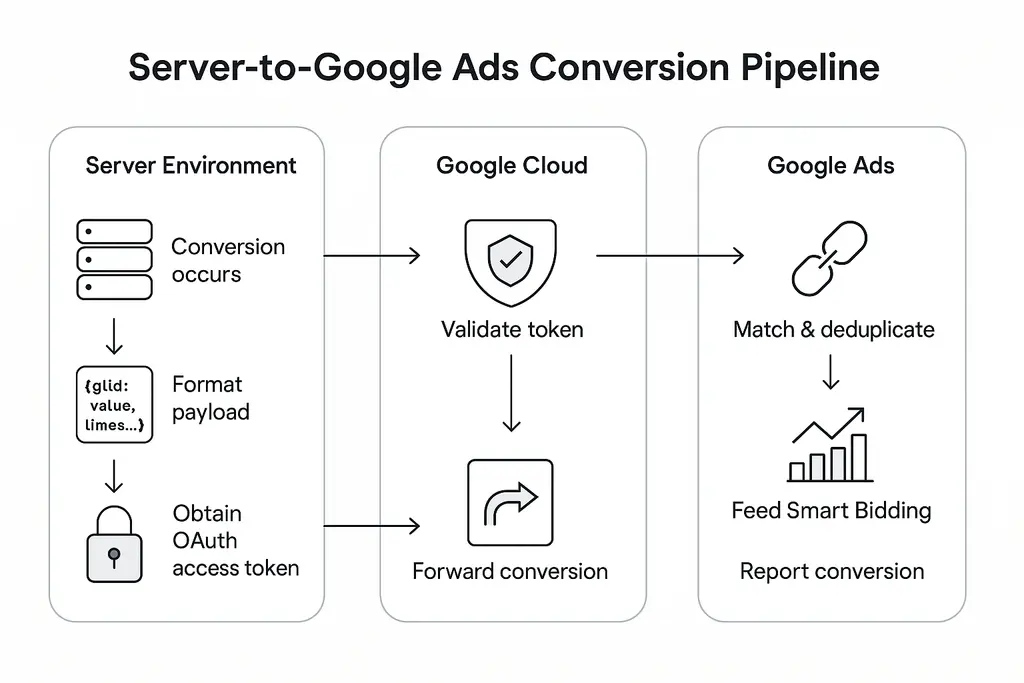
Step 1: Create a Conversion Action in Google Ads
Create a new conversion action and select ‘Import’ as the source. Do not select a source yet as the API will push directly to this conversion action.
Pull two pieces of information:
- Customer ID (next to your account name)
- Conversion Action ID: look for the string of numbers next to ‘ctID’ in the URL
These will be used in your payload as a destination for the conversion action.
customers/123456789/conversionActions/987654321
Step 2: Prepare and Normalize Conversion Data
Each conversion event needs user identifiers to match to the original user profile and ad click.
- GCLID/GBRAID/WBRAID – required
- Email (SHA256 hashed)
- Phone Number (SHA256 hashed)
- Conversion Value (recommended)
Hashed user data is required for privacy compliance. These fields feed your API upload.
Step 3: Choose and Configure a Server Environment (Microsoft Example)
For the cleanest setup, use Azure Function. It’s seamless integration with OAuth and credential storing in Azure Key Vault make it the simplest setup.
When an event triggers (i.e. lead → qualified), a workflow sends a webhook to Azure Function which formats the payload and calls Google Ads API.
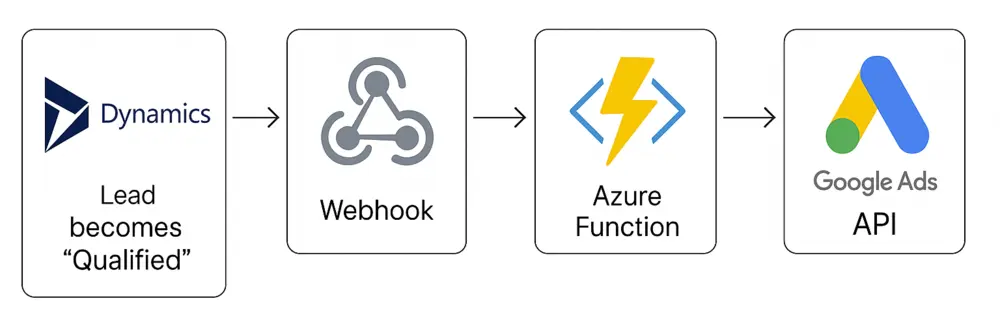
Using a CDP list Microsoft Customer Insights superpowers conversion tracking with unified customer profiles.
Instead of just tracking lead → qualified, unified profiles can track back to the first campaign source that drove a user session.
Simply send the event from your CDP to server environment for more robust measurement.
Step 4: Authenticate with Google Ads API
Take the authentication keys created in Google Cloud and add them to your server environment as secrets.
Use Microsoft’s Azure Key Vault for safe and simple storage. Create Secrets for the following:
- Google Ads Developer Token
- Client ID
- Client Secret
- Refresh Token
- Google Ads Customer ID
- Conversion Action ID
Step 5: Build and Send the Conversion Payload
This is where everything you’ve set up comes together. First, set up the Webhook.
Webhook & Payload Setup
The webhook is set up as a HTTP trigger that calls your Azure Function.
POST https://<your-func>.azurewebsites.net/api/googleads-conversion
This includes your Payload builder, including the information captured previously.
Example Payload
{
 "conversion_action": "customers/123456789/conversionActions/987654321",
 "gclid": "EAIaIQob...",
 "conversion_date_time": "2025-12-11 13:00:00-05:00",
 "conversion_value": 250,
 "currency_code": "USD",
 "order_id": "DYN-LEAD-4872",
 "user_identifiers": [
   {
     "hashed_email": "4d186321c1a7f0f354b297e8914ab240"
   },
   {
     "hashed_phone_number": "f7c3bc1d808e04732adf679965ccc34c"
   }
 ]
}
Authentication Setup
Google Ads API requires an access token which we generated through OAuth in Google Cloud. Call Google’s token endpoint with your secrets.
POST https://oauth2.googleapis.com/token
Include your authentication details to receive an access token.
client_idclient_secretrefresh_tokengrant_type=refresh_token
Finally, set up your API request.
API Request Setup
The final call uses your conversion action details and Google Ads API key.
POST https://googleads.googleapis.com/v17/customers/<CID>:uploadClickConversions
This post includes distinct header and body sections to pass through information generated in the previous steps.
Headers:
Authorization: Bearer <access_token>developer-token: <dev token>login-customer-id: <MCC ID>if you’re under an MCC
Body:
conversions: [ { ...your payload fields... } ]partialFailure: true(highly recommended)validateOnly: truefor testing (optional)
Make sure to log partial failure errors (this makes sure your entire call doesn’t fail if one conversion is invalid) and Google’s return response to ensure your call is working.
Step 6: Validate and Monitor Conversions in Google Ads
Once the API call is set up, the conversion action in Google Ads should switch from ‘inactive’ to ‘active’.
Click on the conversion action to check ‘Diagnostics’. There you can see the match rate for GCLID and User Identifiers. Aim for a match rate above 80% for good optimization signal.
Why Conversion Control Matters More Than Ever
As the advertising world shifts more towards algorithmic ad optimization, conversion tracking remains one of the last areas where advertisers retain meaningful control.
Google’s Demand Gen and Performance Max campaigns illustrate this clearly – they often over target existing customers in the search for high intent.
This challenge extends beyond Google. Meta’s Andromeda update has further exposed the need for conversion optimization that prioritizes the right signals, not just the easiest ones to capture.
Moving into 2026, advertisers must focus on:
- Tracking new customers
- Tracking first-click campaign sources
- Distinguishing between low and high quality conversions
Without this level of nuance in your measurement strategy, performance becomes harder to interpret, and even harder to trust.
Starting with a server-side setup through Google Ads API or Meta’s Conversions API are no longer advanced tactics; they are foundational. Advertisers who invest in these systems now will enter 2026 with a clearer view of what’s actually driving growth – while others are left optimizing in the dark.